1. Getting started
- New booking: Book China to U.S. FBA shipping
- Sign in: top-right Login on any page. Use the email registered with your Linktrans account manager.
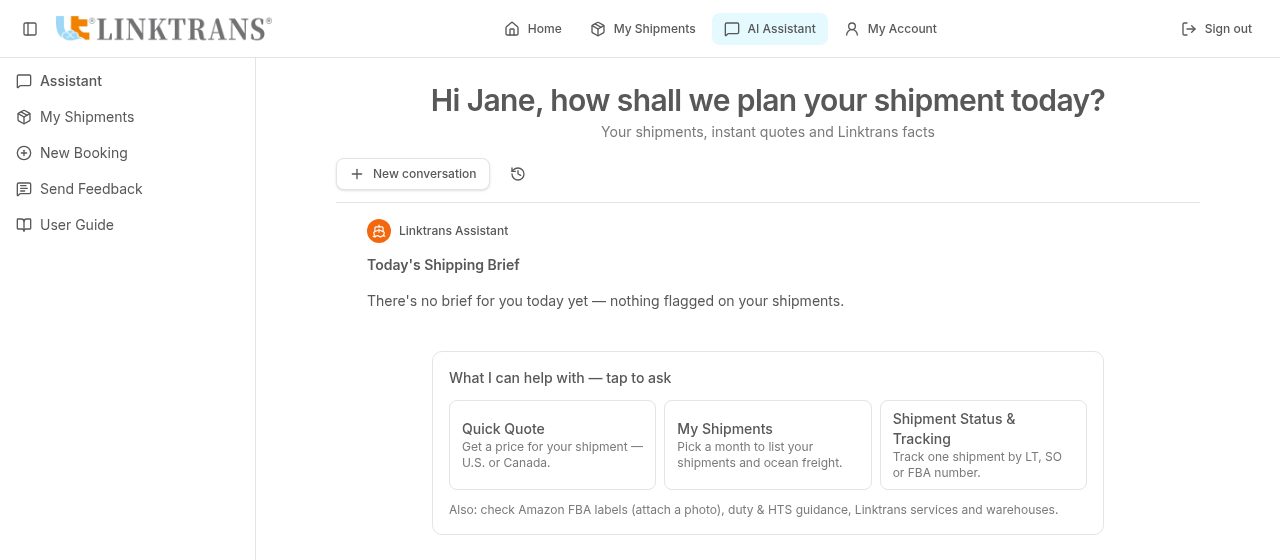
- After signing in, the left menu gives you Assistant, My Shipments, New Booking, Send Feedback and User Guide. On the main website the same links are in the My Account menu.
Prepare before booking: destination warehouse codes or delivery ZIP codes, carton count, carton size (inches), gross weight per carton (lbs), product names, the factory city/address and your supplier's contact.
Sign in before booking so the order appears automatically in My Shipments.
2. Online booking — 5 steps
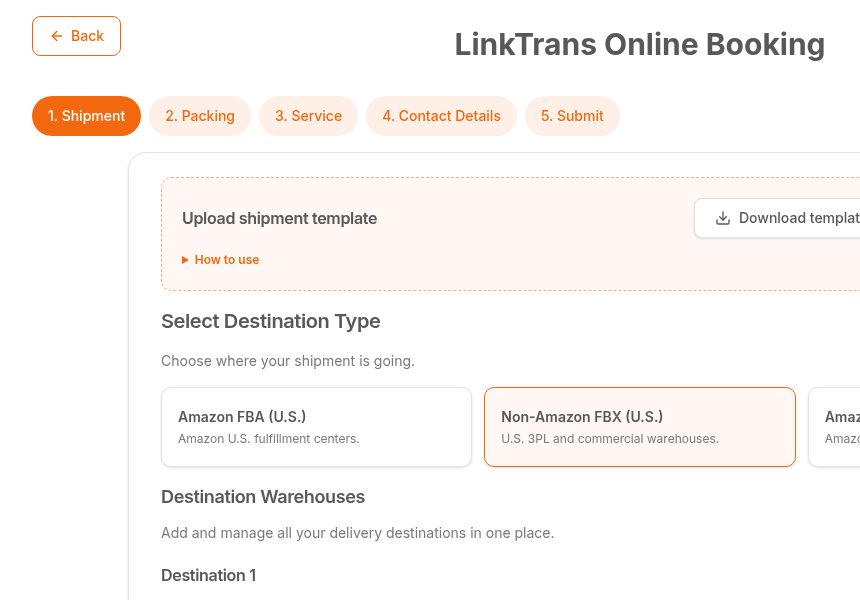
Open Booking, watch the short introduction if needed, then click Get My Price Now. The booking has five steps shown at the top: Shipment → Packing → Service → Contact Details → Submit. Click any earlier step to go back; your entries are kept.
- Automatic saving: about 2 seconds after you stop typing, your draft is saved ("Saved" appears next to Save draft). Signed in, it is saved to your account; otherwise to this browser.
- When you come back, choose Continue to resume the draft or Discard to start fresh. The draft is deleted after you submit.
3. Step 1 · Shipment
- Upload shipment template (top of the page, optional — the fastest way to book many destinations):
- Click Download template to get the Excel file.
- Fill one row per carton size per destination: product name, warehouse code (or delivery address / ZIP for FBX), number of cartons, length, width, height and gross weight of one carton. Shipment value is optional.
- Use inches and lbs, and keep the column headings unchanged.
- Click Upload spreadsheet and choose the .xlsx/.xls file. Every destination and carton line is filled in automatically and can still be edited.
- Using your own spreadsheet with different headings or cm/kg? A column-matching window opens so you can confirm each field and unit before importing.
- Rows with an unknown warehouse code or missing numbers are pointed out so you can fix them.
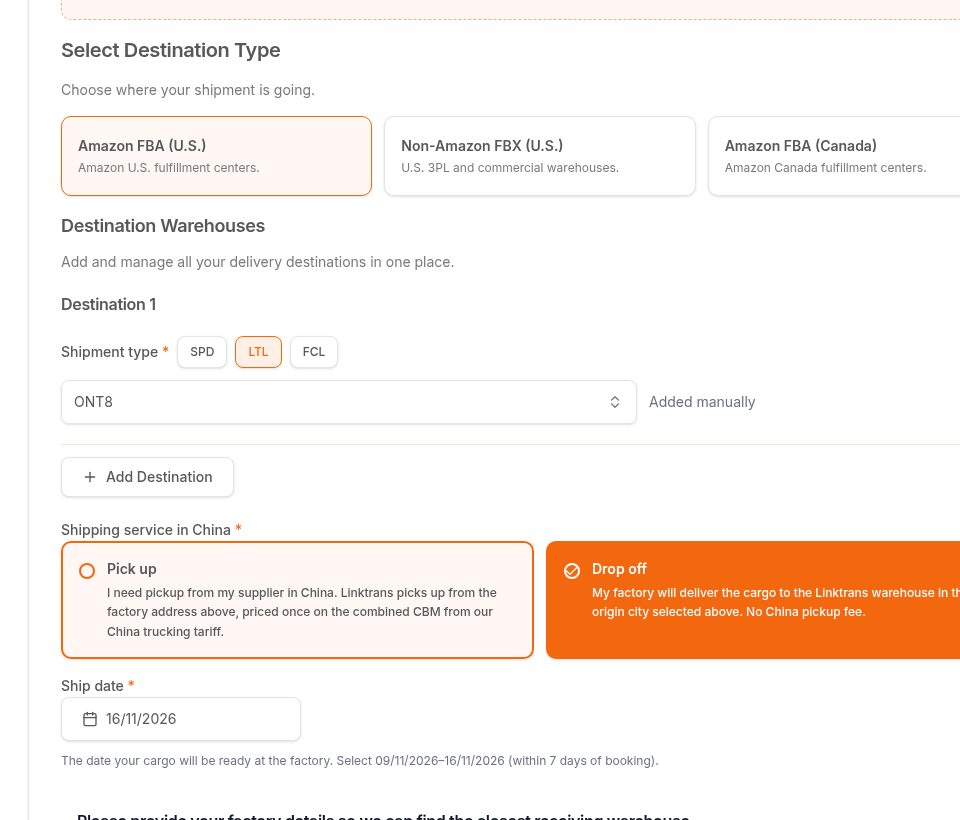
- Choose the destination type: Amazon FBA (U.S.), Non-Amazon FBX (U.S.) or Amazon FBA (Canada). One booking uses one destination type.
- Add each destination. Amazon: search the warehouse code (e.g. ONT8, YYZ1).
- FBX: in Destination warehouse code you can pick a platform warehouse code or type the 5-digit delivery ZIP code — the list shows matching ZIP codes as you type. Or choose Street address and enter City, Street and ZIP. The price is matched from the ZIP automatically.
- Fill in the factory city, whether we Pick up or you Drop off, and the receiving warehouse (selected automatically, can be changed).
- Ship date (goods-ready date): at least 7 days from today. The calendar closes automatically after you pick a date.
An FBX ZIP or code that is not in our weekly price table cannot be priced online — contact us for a quote.
4. Step 2 · Packing
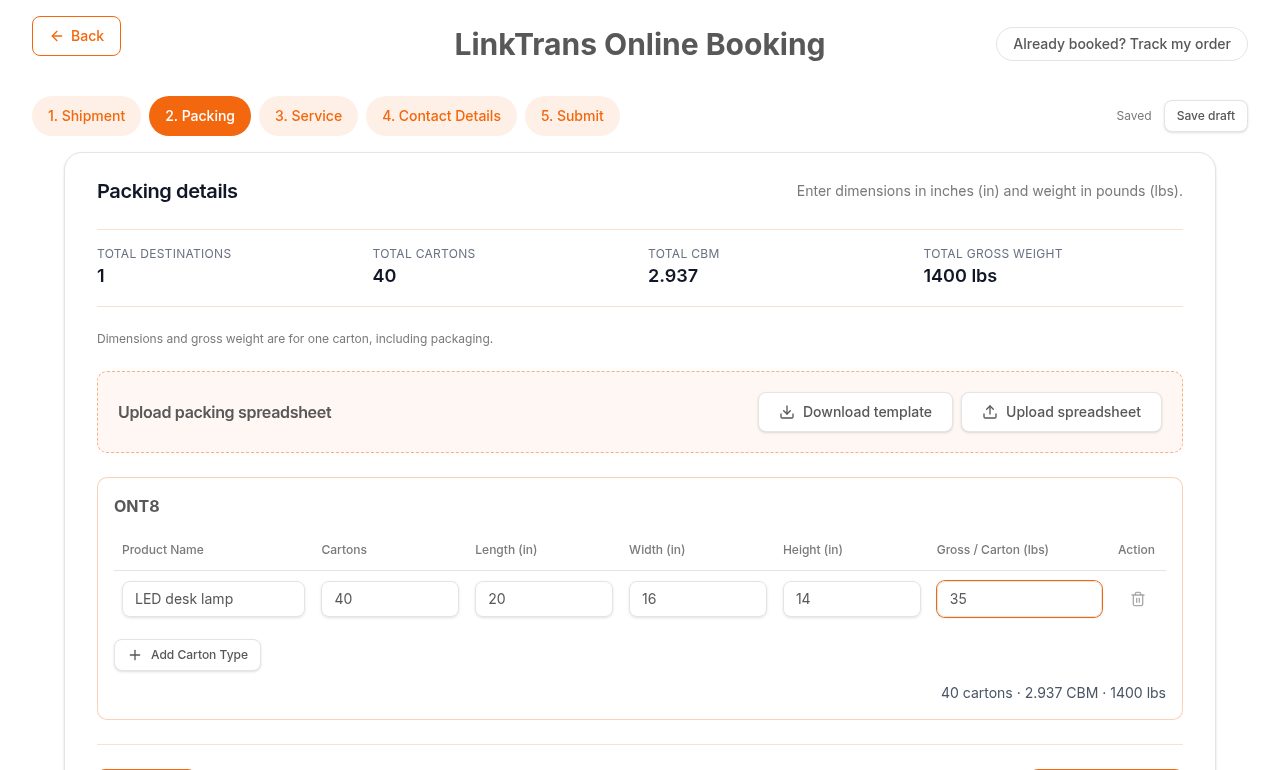
For every destination, enter one line per carton size: Product name, Cartons, Length (in), Width (in), Height (in), Gross / Carton (lbs). Dimensions are in inches and weight in pounds. The summary shows cartons, total CBM and total weight in lbs.
- You can still upload your spreadsheet here. Click Upload spreadsheet at the bottom of Step 2 to import your template or your own packing list. The system automatically recognizes the warehouse code / ZIP, product name, carton quantity, carton dimensions and gross weight, and converts cm/kg into inches/lbs. If the headings are different, confirm the columns in the matching window.
- Amazon FBA (U.S.): you can also upload your FBA carton labels (PDF, one file per shipment). We read the FC code, number of cartons, weight per carton and box sizes automatically.
- Use Add box size for cartons with a different size or weight.
- Enter the weight of one carton, not the total.
- Truck/LTL chargeable volume = greater of actual CBM or gross kg ÷ 363. FBX is per CBM with a 2 CBM minimum. Final charges follow warehouse-measured size and weight.
5. Step 3 · Service
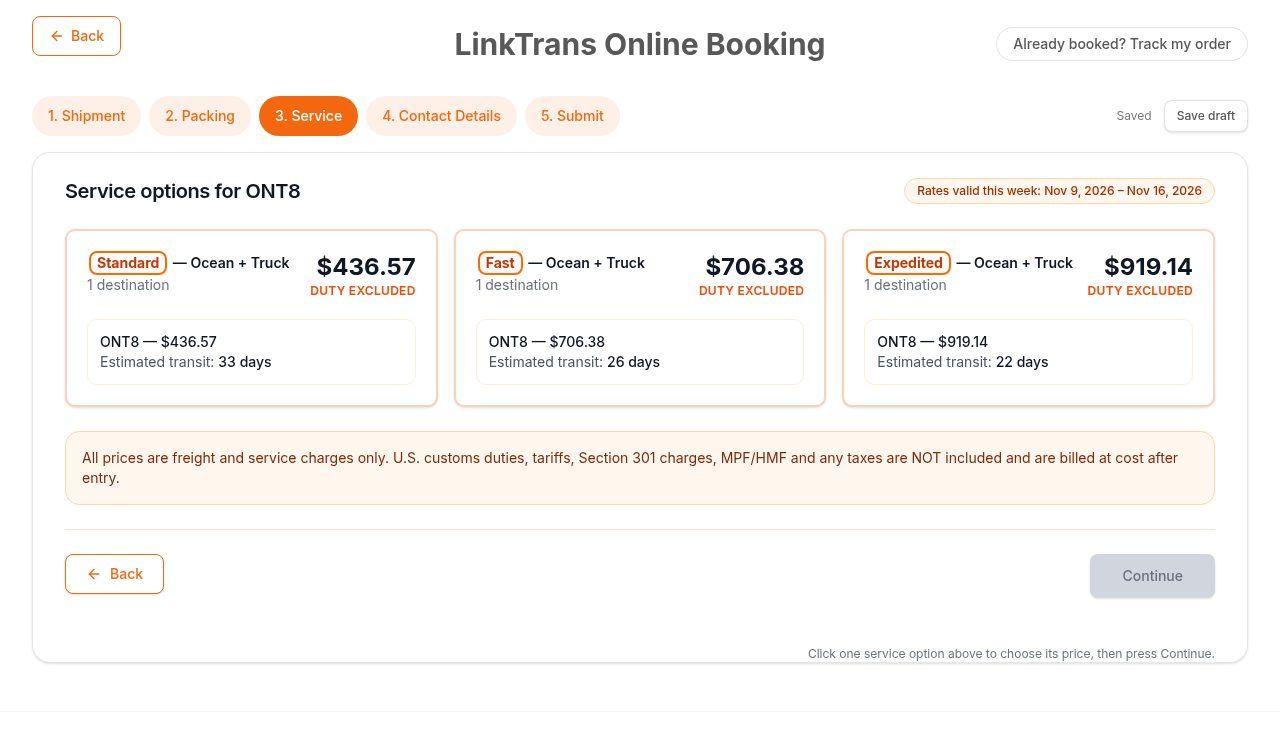
Compare the available services side by side; the price is always on the right of each card. FBX services are named Standard (later also Express and Premium). Each card shows the number of destinations, each warehouse's price and a separate China pickup line when pickup applies (charged once per booking).
- Prices use this week's tariff and a CNY/USD rate fixed every Tuesday for the whole week. Duties and taxes are not included.
- FBX commercial-address extras: lift-gate truck USD 100, special/restricted address USD 200 (only if selected).
6. Step 4 · Contact Details
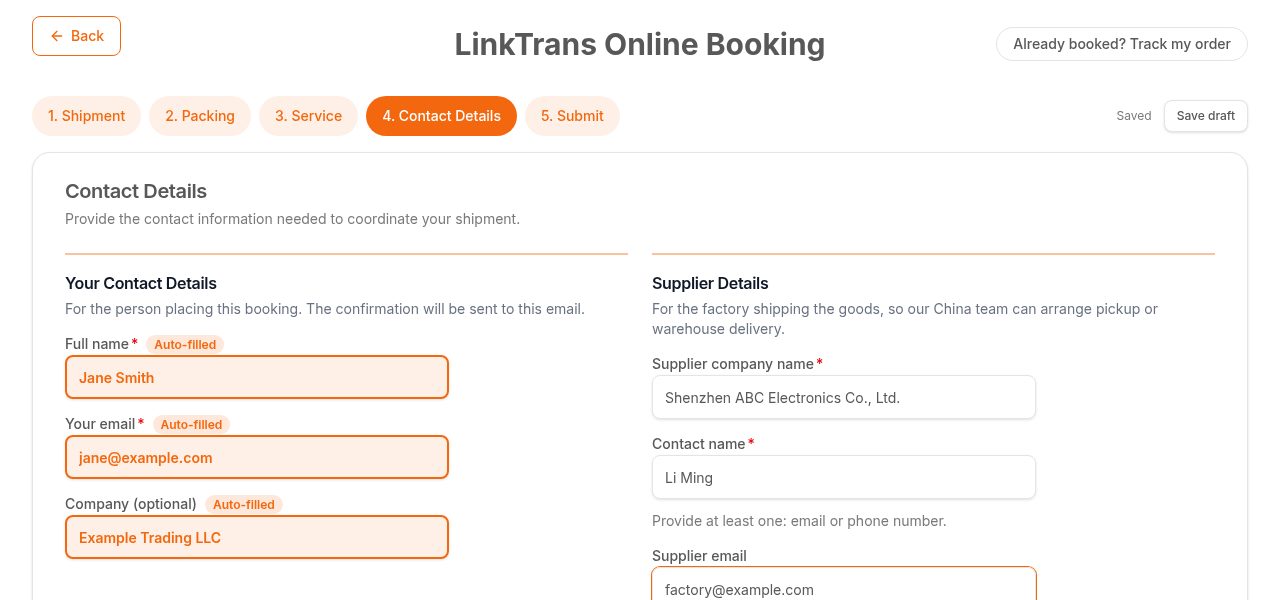
Your details: full name, email (and optional company). Fields filled from your account or draft are highlighted in orange with an Auto-filled tag — please check them.
Supplier Details: Supplier company name (e.g. Shenzhen ABC Electronics Co., Ltd.), Contact name, and Email or Phone — at least one of the two is required.
7. Step 5 · Submit
Review the total price card (ocean freight & delivery, surcharges, one-time China pickup) and each warehouse card with its transit time, price and packing details.
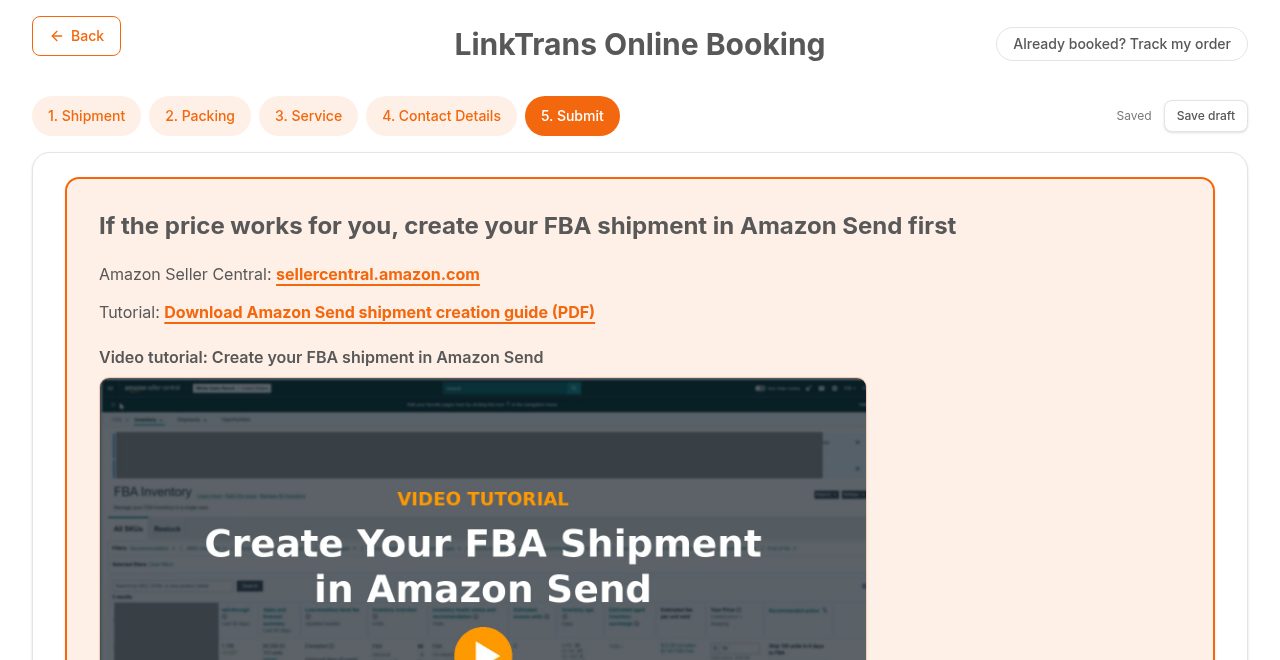
- Amazon FBA (U.S.): we recommend creating the shipment in Amazon Send. Use the Amazon Seller Central link, the PDF guide and the video tutorial shown at the top. To book directly with us instead, open Review your booking and submit here.
- Tick the cargo confirmation box and click Submit booking. Keep the page open until Booking received shows your LT number.
- A confirmation email is sent only to your own email; we contact your supplier separately.
"Booking received" means submitted for review — not yet accepted, shipped or paid.
8. My Shipments
- One list for online bookings (LT) and imported shipments (SO). Filter by status, month, dates, country and source.
- Search by LT number, SO number or FBA ID — results update as you type; press Enter or the magnifier to search immediately.
- Open View Details for routes, tracking and charges. Edit / Cancel order appear only while the booking is still eligible (normally before an SO is issued). After an edit you receive an updated confirmation email.
- Shared charges (e.g. China pickup) are billed once; "Pending confirmation" is a status, not a second charge.
9. AI Assistant
- Ask about shipment status, booking details, monthly volumes, U.S./Canada quotes or cargo checks. It reopens your last conversation; click New conversation for a fresh one.
- Click My Shipments in the left menu to open your shipments beside the chat and ask about one directly.
- Attach labels, packing lists or templates (JPG, PNG, PDF, Excel, Word, CSV; up to 20 MB). Assistant quotes are estimates — use New Booking to actually book.
10. Feedback & support
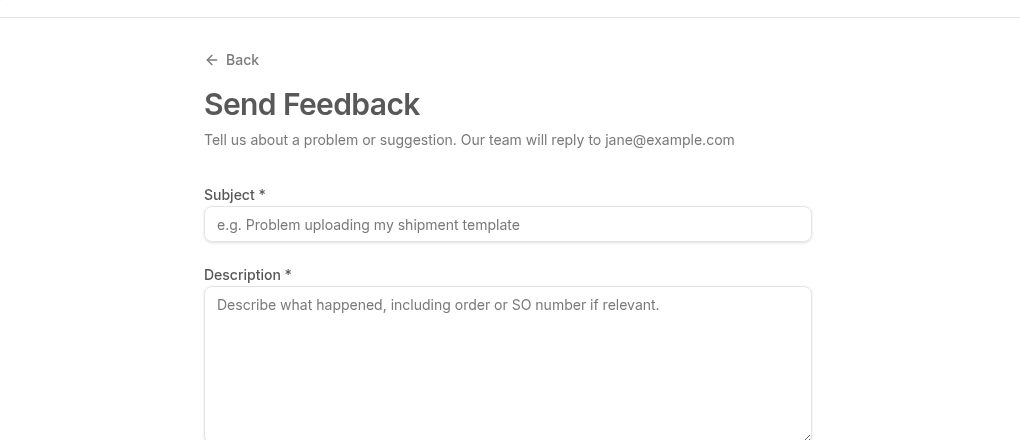
- Send Feedback is in the left menu after you sign in, and in the My Account menu on the website. Describe the issue and attach screenshots (up to 6 images).
- Not signed in? Use the Contact page.
- Price changed? The weekly tariff or your booking details changed — review the new price and submit again. Missing email? Check spam before booking again.